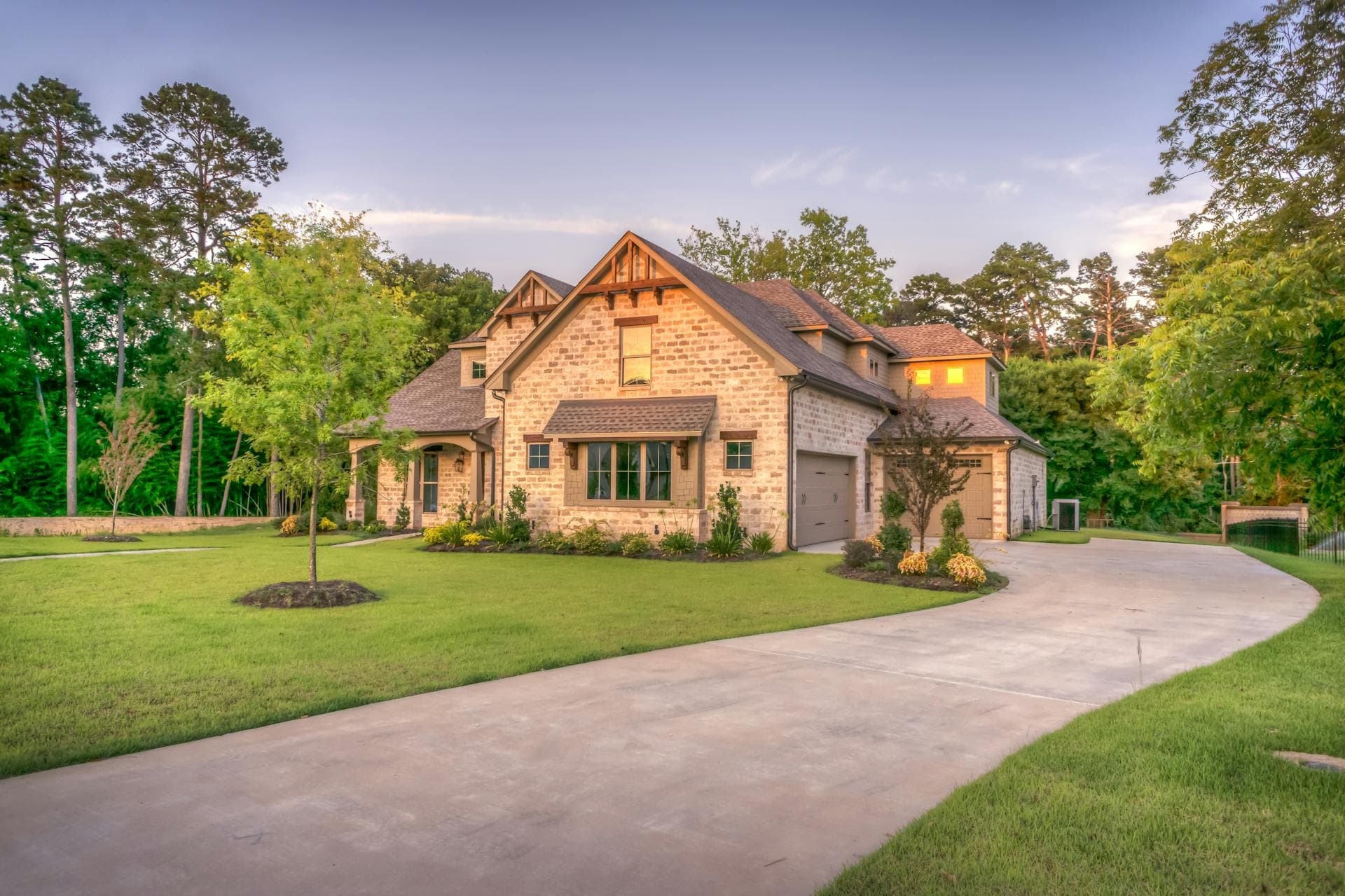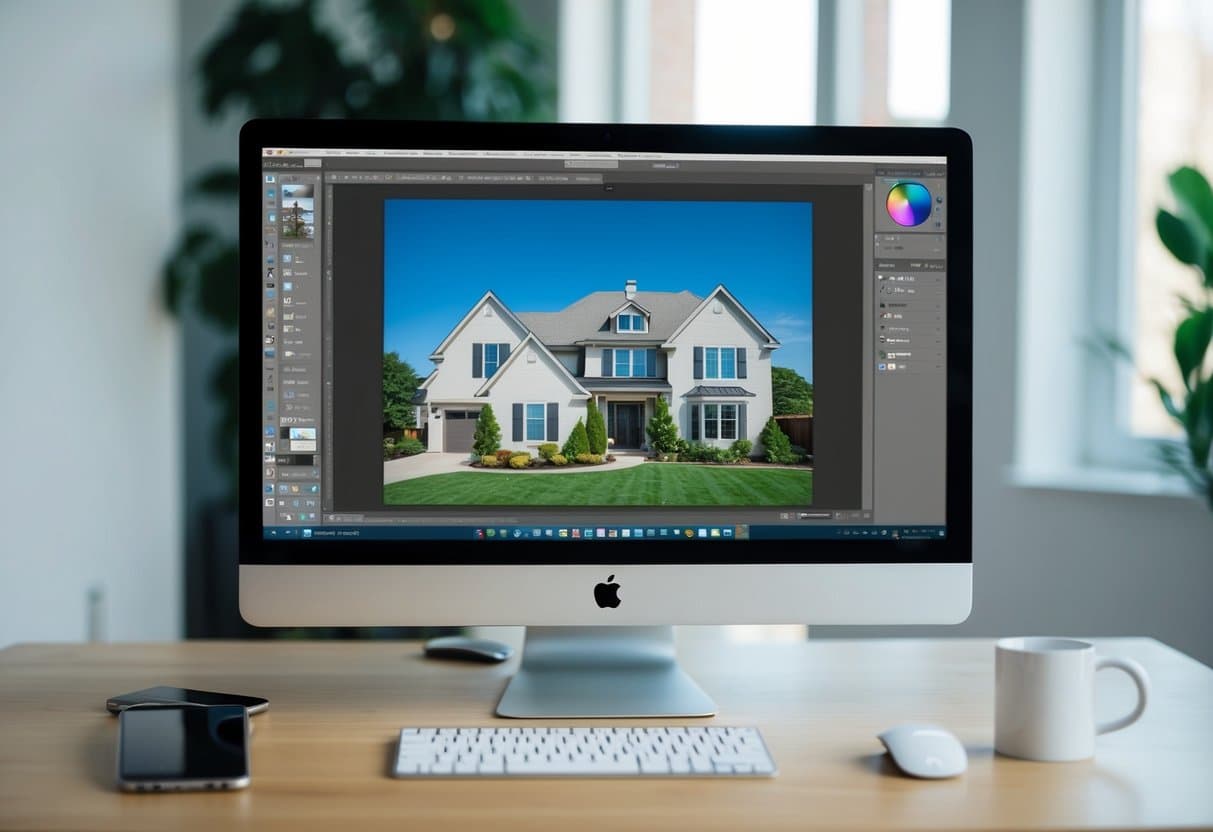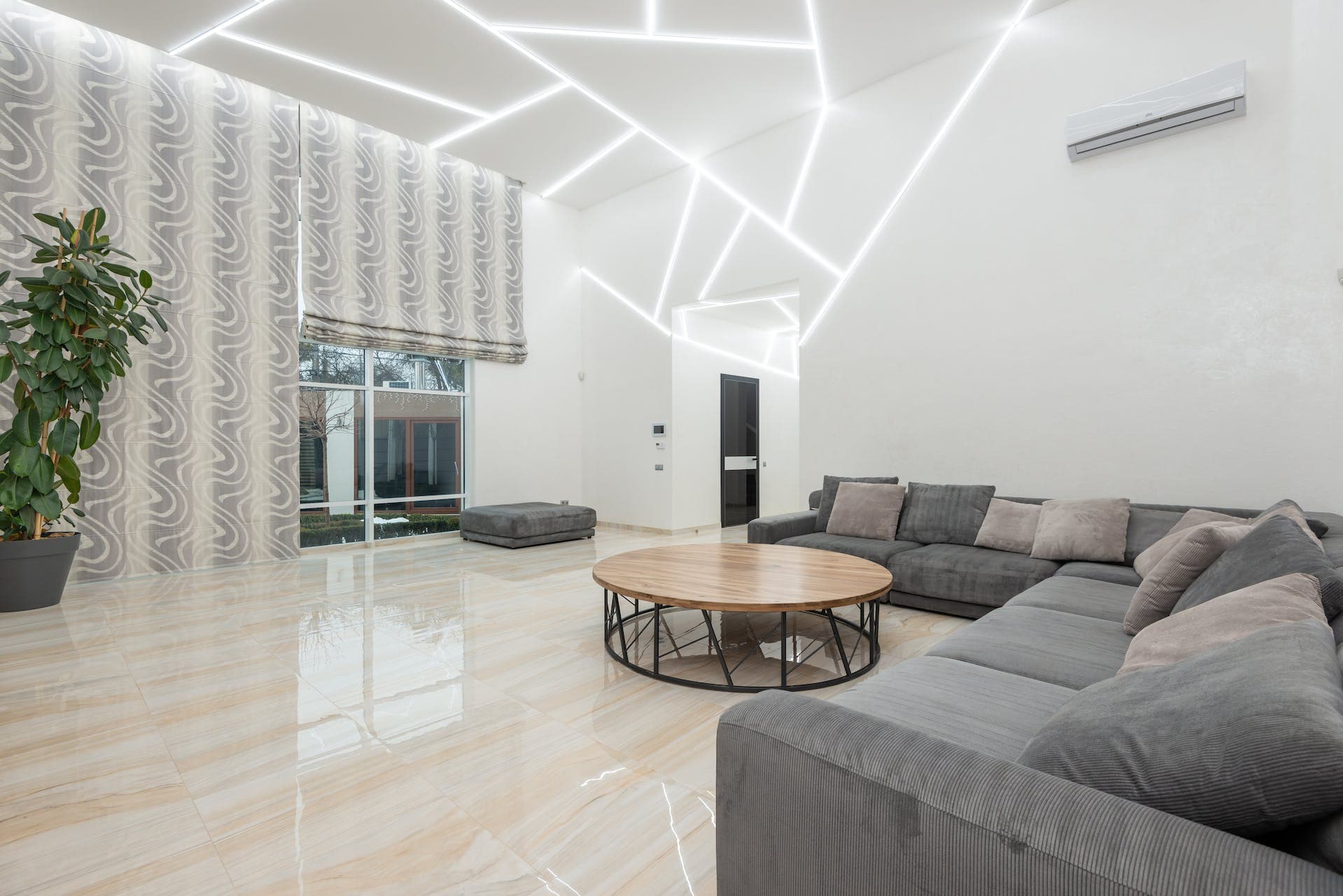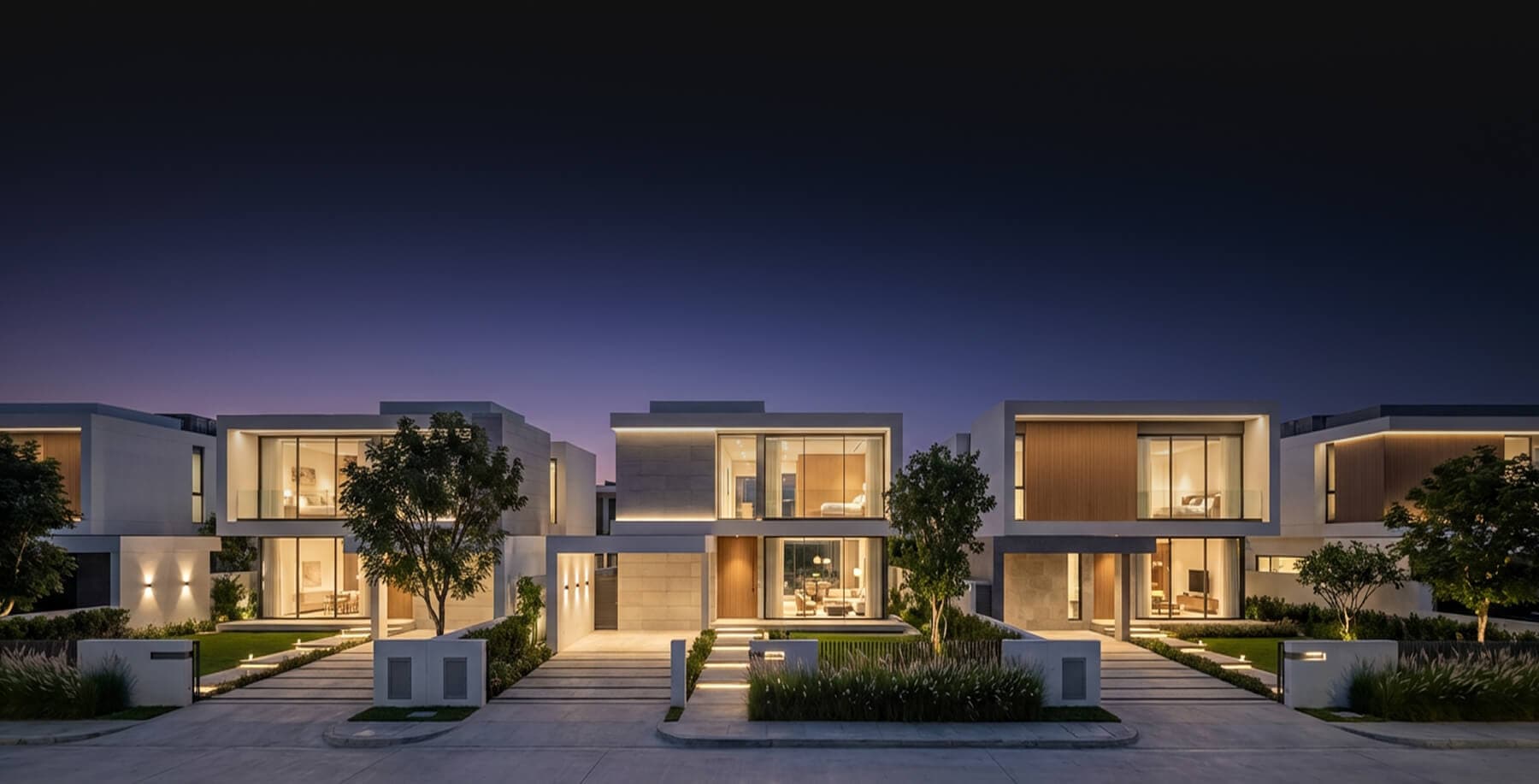
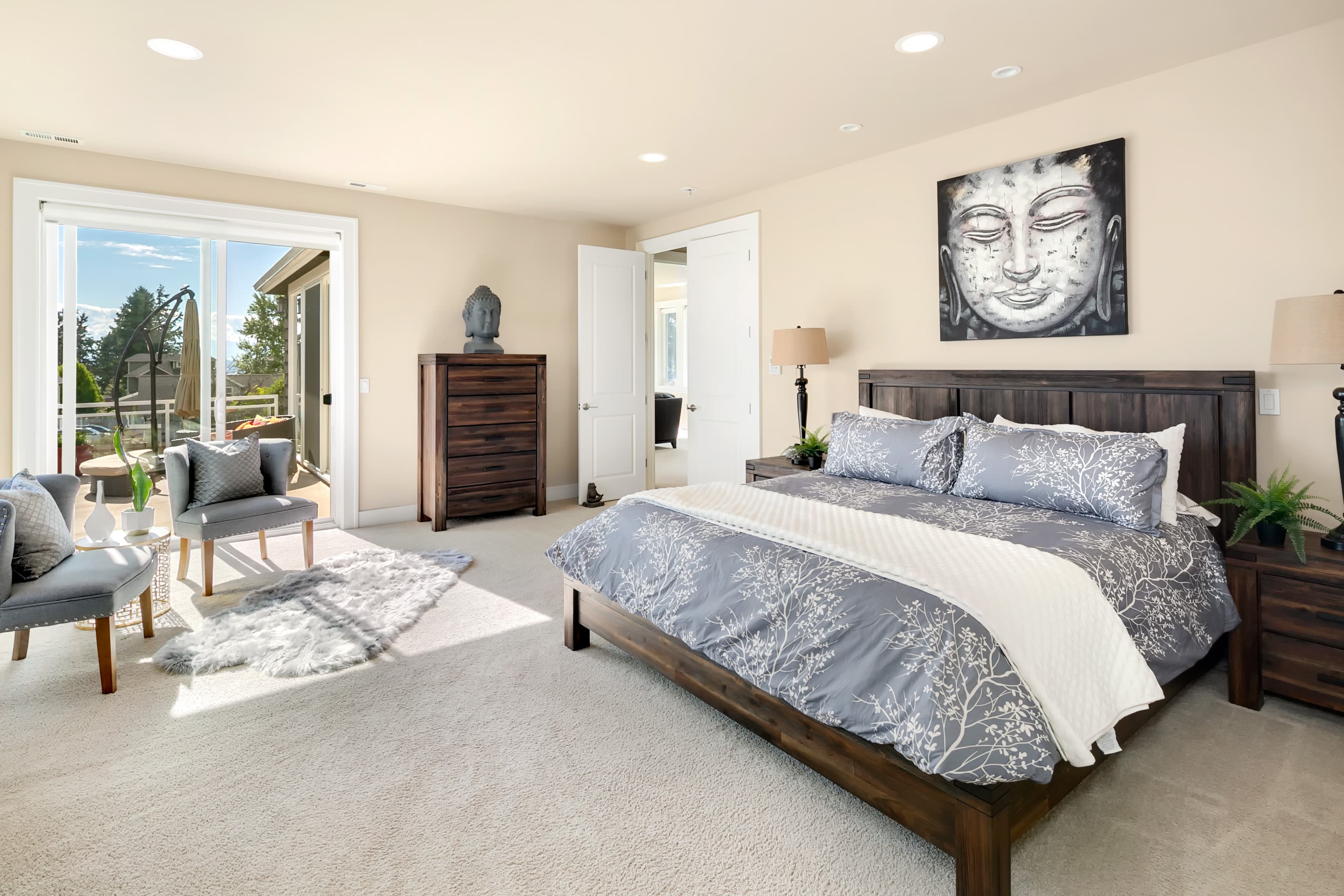
Photography has never been more important to real estate than it is these days. This is the reason why photography markets are always in demand. Photo editing, as we know, can recreate ordinary pictures to look more appealing and attractive. It helps increase the aesthetic beauty of properties by the enhancement images.
With proper knowledge, it is essential in creating profits out of photo editing. Photo editing is valuable to portraits for personal representation of pictures. Promoting products online is very important. You can consider designing your own website by improving your skills in mastering photo editing. In this way, you can also apply for freelancer jobs related to graphics, arts and designs.

Techniques in Color Correction using Photoshop: A Tutorial
1. For color correction, add the Threshold Adjustment and Curves
- If you want to some of your images to look black and white, click Image and go to Adjustment. You may choose Threshold and a curve dialog will pop out. Dragging the dialog box level will turn the image darker, going to the left, lighter in color.

- You also have the option to choose Layer then New Adjustment Layer the select Threshold. Observe that the same dialog box will show up. Instead, you may switch to the Burn tool and arrange to Midtones and adjust the exposure to only 10% then you can pick the Eyedropper tool while at the same time holding down the Shift button.

- To add definition to the image, you can hold the Optional Outkey to either darken or adding exposure.
- To adjust the white balance of the image, you need to pick any white object and apply color grading. To do this, make sure you are on Curves.
- Click the area of concerned and a 4-point curve will show. This time, make sure that all color points are on the same horizontal line. This can be done by clicking the color buttons and pull each color either up or down to position it to the same horizontal line.
Video Credit to 2 Minute Photoshop
2. Adjust the Skin Color
• To make the skin color perfect, you need to pull this one up by breaking down the White, Black, Latin, and Asian skin color.
• Balance the primary color of magenta, yellow, black and cyan.
• To do this, use Gradient Maps to upgrade skin color and tones. You also have the option to choose Layer then New Adjustment Layer the select Gradient Maps then click OK.
• Click the color gradient map icon and click the Brush pre-sets and come down to Photographic Toning then OK.
• This is now the time for you to select the tone of what you think best works for you.
• You can change the blend mode to soft light and everything is up to you to adjust the Opacity percentage.
• Selecting the Blend Option merely adjusts the shadows of your image.
Video Credit to Prince Meyson
3. Use the Camera Raw Editor for White Balance adjustment
• To adjust the white balance of the image, you can open the image in the Camera RAW editor to transform the image to a smart object
• Proceed to Filter then click Camera Raw Filter
• Select the White Balance tool and choose As Shot to automatically make the white balance corrected
• You the Eyedropper and drag it to choose the part that you wanted to fix.
• It will automatically crack the color of the image to give you a White Balance
Video Credit to Pink Flower Photography
4. Correct the Hue and Saturation Layer
• You can mimic the functions of Curves with Hue and Saturation
• Hue and Saturation is significant to augment color correction.
• After getting your image opened, choose Layer then New Adjustment Layer the select Hue and Saturation.
• A Properties dialog box will pop up
• Adjust the Hue level to your preference and it will change the colors of all the objects in the image.
• Saturation, on the other hand, will either add or remove all the colors of the object in the photo. You can easily do Saturation jobs by clicking the ‘Little Finger’ in the box and choose from the photo what part you wanted to edit. By dragging to the right, the image increases saturation and left, decreases.
• Adjusting the Lightness can make the image very light or very dark. This will definitely affect the contrast of the image.
• You can also use the range of colors at the bottom of the dialog box. It specifies the range and focus to be used.
• If you want to add or diminish color, you can initially click the Eyedropper then click it to the selected part to be edited. To add colors, select the Eyedropper with the plus (+) sign. To decrease colors, use the Eyedropper with minus (-) sign.
Video Credit to tutvid